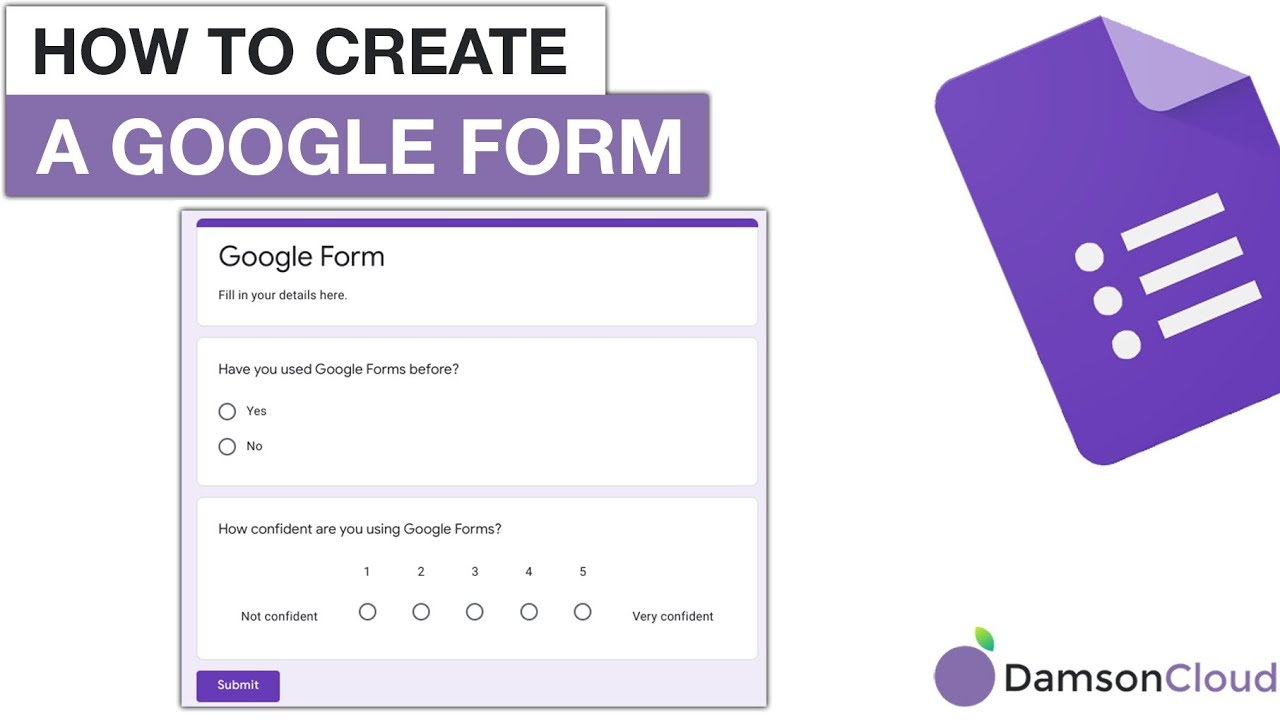
Google Forms is a free web-based tool for creating and sharing surveys and other types of forms. It is part of the Google Drive suite of productivity tools, and allows users to easily create and customize forms, collect and analyze responses, and share the results with others.
Google Forms offers a variety of question types, including multiple choice, checkboxes, short answer, and ranking. Forms can be customized with different themes and colors, and users can add images and videos to make the forms more engaging.
Once a form is created, it can be shared with others via a link or embedded in a website or blog. Responses to the form can be collected and analyzed in real-time, and users can view the results in the form of graphs and charts.
Overall, Google Forms is a powerful and easy-to-use tool for creating and sharing surveys and other types of forms. It is free to use, and can help users to quickly collect and analyze data from a wide range of sources.
To create a Google Form, you will need a Google account and access to the Google Drive suite of productivity tools. Here's how to create a Google Form:
Go to the Google Drive website and log in to your Google account.
Click on the "New" button in the top left corner of the screen, and select "Google Forms" from the dropdown menu.
In the "New form" window that appears, enter a name for your form and select a template, if desired.
Click on the "Blank" tab to start with a blank form, or select a pre-made template from the other tabs.
Use the "Add item" button to add questions to your form. You can choose from a variety of question types, including multiple choice, checkboxes, short answer, and ranking.
Use the formatting tools to customize the appearance of your form, such as adding images, videos, or changing the theme or color scheme.
When you are finished creating your form, click on the "Send" button in the top right corner of the screen to share your form with others.
Select the "Link" tab to get a link to your form, or select the "Embed" tab to embed the form in a website or blog.
Overall, creating a Google Form is a simple and straightforward process that allows you to quickly and easily create and share surveys and other types of forms. By following these steps, you can create a Google Form and start collecting responses from others in real-time.